MacBook overheating while coding agents run? Check what they started
Identify the processes behind sustained heat, reduce unnecessary local work, or move the agents to cloud sandboxes so the laptop stops running builds.
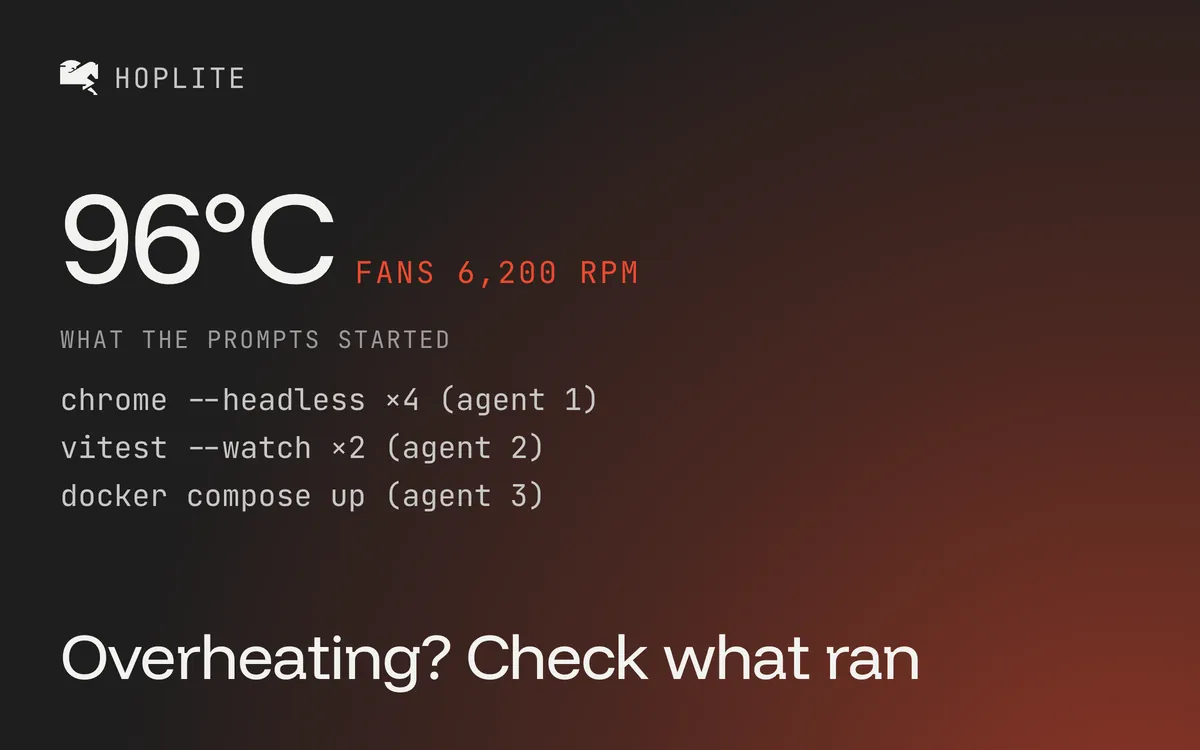
You ask a coding agent for a small change, and a few minutes later the laptop is hot. On a Mac with fans, you may hear them long before you see a finished diff.
The prompt can be small while the work is substantial. A dependency install, compilation, browser test, or local service can run behind the conversation. Start by finding that work instead of treating the chat window as the whole application.
When heat is a problem
Apple says Mac laptops can become warm during normal use. Its temperature guidance recommends a stable, ventilated work surface and checking CPU activity when the machine stays warm without an obvious intensive task. A temperature reading from a third-party utility does not, by itself, diagnose a hardware problem.
Keep the keyboard and ventilation openings unobstructed. If the temperature problem persists outside your development workload, follow Apple's support guidance rather than assuming a coding-agent setting will solve it.
For a development workload, the useful question is what remains busy and whether that work is still needed.
Find the process doing the work
Open Activity Monitor and inspect the CPU view while the problem is happening. Apple's CPU activity guide explains the system, user, and idle readings and how to view activity over time.
Compare the busy processes with the agent's recent commands. A test watcher can keep running after a test result appears. A preview server can remain active after you switch tasks. Several agents may each have started their own copy of the development stack.
If the agent uses a hosted model, that model's inference happens remotely. The tools it launches on your Mac still use local resources. If you deliberately run a local model as well, include its process in the investigation.
Note which task started a process before stopping it. Quit an unused server from its terminal or task controls where possible. Avoid a command that terminates every process with a common name; your other projects may use the same runtime.
Try a smaller workload
Keep one agent task active and stop unnecessary background work. Run the same build or test again. Then add another task and watch how the machine behaves.
This is a practical comparison, not a temperature benchmark. Keep the environment similar enough to learn something. Changing the number of agents, external displays, power mode, and the test command at once leaves you with several possible explanations.
If activity stays high after the task has finished, investigate the remaining process. A watcher, plugin, or stuck command deserves a different fix from a healthy build that is simply expensive. Save the relevant logs and tool version before restarting it.
Or run the agents somewhere else
Everything above is about managing a workload that doesn't need to be on your laptop. If you want to avoid the problem altogether, use a cloud coding agent like Hoplite.
Each Hoplite run gets its own sandbox. The repository is cloned there, your setup script runs there, and so do the dependency install, the compile, the test suite, and the browser the agent uses to check its work. Your Mac runs the editor and a browser tab. Ten runs in parallel heat ten machines that aren't on your desk.
If a task is already running locally, hoplite handoff continues that Claude Code, Codex, or OpenCode session in the cloud on the same branch. The handoff checklist covers what to commit and push first.
Keep local the work that needs your hardware, such as a physical-device test. The cloud has limits too. Each sandbox has a resource cap, and a loop that rebuilds unchanged code is still wasteful there. It just isn't wasteful on your lap.